
Backing up your photos and files is one of the smartest ways to protect your important data from loss, damage, or accidental deletion. Whether you’re a casual user capturing family memories or a professional storing work documents, having a reliable backup system ensures peace of mind. In this guide, we’ll explore why backups matter and how you can create them using different methods.
Why Back Up Your Photos and Files?
Data loss can happen to anyone and for many reasons: hardware failure, theft, software glitches, or even human error. Without backups, losing your valuable photos and files might mean they’re gone forever. A proper backup plan helps you:
– Recover files quickly after a problem
– Protect against hardware damage or theft
– Avoid stress from unexpected data loss
– Manage space efficiently by archiving older files
Choosing the Right Backup Strategy
Before diving into the how-to, it’s good to understand the main backup types:
1. Local Backup
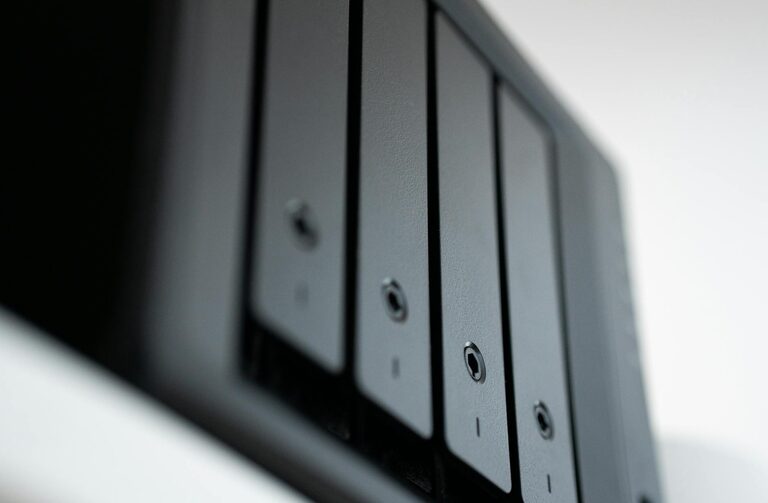
This involves saving copies of your photos and files on physical storage devices like external hard drives, USB flash drives, or network-attached storage (NAS). Local backups are fast and easy to access but can be affected by theft, fire, or physical damage.
2. Cloud Backup
Cloud backup stores your files on remote servers managed by a service provider. This method offers off-site protection, automatic syncing, and easy sharing. However, it may require a subscription and depends on internet connectivity.
3. Hybrid Backup
Combining local and cloud backups gives you added security. You keep quick access copies at home and off-site copies in the cloud, minimizing risks from any single point of failure.
Steps to Back Up Your Photos and Files
Step 1: Organize Your Files
Start by sorting your photos and files into folders. Clear out duplicates and unwanted items. Well-organized files make backups faster and recovery easier.
Step 2: Select a Backup Method
Decide if you want to use local storage, cloud services, or both. Here are some popular options:
#### Local Options
– External hard drives (USB or Thunderbolt)
– USB flash drives
– NAS devices for multiple computers
#### Cloud Services
– Google Drive
– Dropbox
– Microsoft OneDrive
– Apple iCloud
– Dedicated backup services like Backblaze or Carbonite
Step 3: Back Up Your Files Manually or Automatically
You can either copy your files manually to your backup device or set up automatic backups through software.
#### Manual Backup Tips
– Connect your external storage device to your computer
– Copy and paste important folders like Pictures, Documents, and Desktop
– Eject the device safely after transfer
#### Automatic Backup Options
Most operating systems include backup tools:
– Windows: Use File History or backup utilities
– Mac: Use Time Machine to back up to external drives
– Third-party software: Tools like Acronis True Image or EaseUS Todo Backup can schedule backups
For cloud backups, install the app from your service provider and set it to sync automatically.
Step 4: Verify Your Backups
After creating backups, it’s crucial to check that files have transferred correctly. Open a few files from the backup to ensure they are not corrupted.
Step 5: Keep Your Backups Updated
Files change over time, so schedule regular backups weekly or monthly. For automated backups, check the system periodically to ensure everything runs smoothly.
Additional Tips for Safe Backup Practices
– Use multiple backup locations: Keep at least two copies of your data in different physical places.
– Encrypt sensitive data: Use encryption for privacy, especially with cloud backups.
– Label your backup drives: Clearly mark external drives with dates or contents.
– Test recovery: Occasionally try restoring files from your backup to confirm it works.
– Keep your software updated: Ensure your operating system and backup software have the latest updates.
Conclusion
Backing up your photos and files may sound complicated, but with the right approach, it becomes a simple habit that safeguards your digital life. Start by organizing your files, then choose local, cloud, or hybrid backup methods depending on your needs. Regularly update your backups and verify their integrity to enjoy stress-free data security.
Remember, losing precious memories or critical work documents doesn’t have to be a worry. With a reliable backup strategy in place, your files will be safe no matter what happens.